


Nine days before Black Friday last year, a configuration change at Cloudflare caused sites that rely on it to return errors for around three hours, according to Cloudflare’s own post-mortem. The stores affected hadn’t changed anything themselves, so a test they ran the week before wouldn’t have caught it, but a scheduled one running that morning would have.
Your own store is changing fast that week too. Prices drop, banners go up, new discount codes get created, and a lot of it is scheduled to switch on at midnight while your team is asleep.
Each of those changes can look fine on its own, but the first time they all run together is usually when the sale goes live and shoppers start arriving. If a promotional code won’t apply or a checkout button stops responding at that point, you’ll hear about it from customers before you hear about it from a test.
The short version: Black Friday website testing starts with the journeys that make you money (product pages, cart, discount codes and checkout through to the confirmation email), checked on mobile and desktop before the sale. Test them again the minute your sale switches on. Then keep those tests running on a schedule, with alerts, until Cyber Monday is over, because things you don’t control can still break mid-sale.
Table of Contents
- Start with the journeys that make you money
- Test checkout all the way to the confirmation email
- Test the minute the sale switches on (and off)
- Check the sale on the phones and browsers your shoppers use
- Keep your tests running through Cyber Monday
- Your Black Friday website testing checklist
- Frequently asked questions (FAQ)
Start with the journeys that make you money
If shoppers can’t apply a discount, build a cart or pay, you lose the sale straight away, so test these first.
Discount codes and promotions
Shoppers expect an advertised code to work the first time, so test more than the obvious case before the sale goes live:
- Apply a valid Black Friday discount code.
- Try an expired or invalid coupon.
- Check whether a discount applies to eligible products only.
- Test what happens when a customer removes an applied coupon.
- Verify that the order total changes correctly.
- Try stacking two codes, or a code on top of an automatic sale price, and confirm the store follows your rules.
- Enter the code in different cases (BLACKFRIDAY, blackfriday, BlackFriday) to see whether it’s case-sensitive.
Consider a store offering 20% off selected products. When a customer adds an eligible item to their cart and enters the promotional code, the discount should appear in the order summary and the final price should reflect it. It’s also worth checking what happens when customers add products that aren’t included in the promotion, because a discount that works for one product but incorrectly applies to others can create problems for both the customer and the retailer.
If you have a long list of codes, you don’t need a separate test for each one. With data-driven testing in Ghost Inspector, you upload a CSV of codes and run one test against every row. Each row runs as its own separate test run, so a CSV with 20 codes produces 20 runs.
Prices, cart and stock
Here are a few scenarios to test:
- Adding multiple products to the cart.
- Increasing or decreasing product quantities.
- Removing products.
- Checking whether sale prices appear correctly.
- Verifying that the subtotal and final amount are accurate.
- Refreshing the page to see whether cart contents remain available.
Pay attention to what happens when a product becomes unavailable, and make sure the store communicates the situation clearly rather than allowing customers to proceed with an order that can’t be fulfilled.
Test checkout all the way to the confirmation email
In Baymard Institute’s survey of US online shoppers, 17% said they had abandoned a checkout because the website had errors or crashed. To catch those errors before shoppers do, walk through the entire process as a customer would and check whether:
- Customers can enter their delivery information.
- Required form fields display properly.
- Shipping options appear correctly.
- Order totals update when delivery options change.
- Payment options are available.
- Customers receive the correct order confirmation email after a successful test transaction.
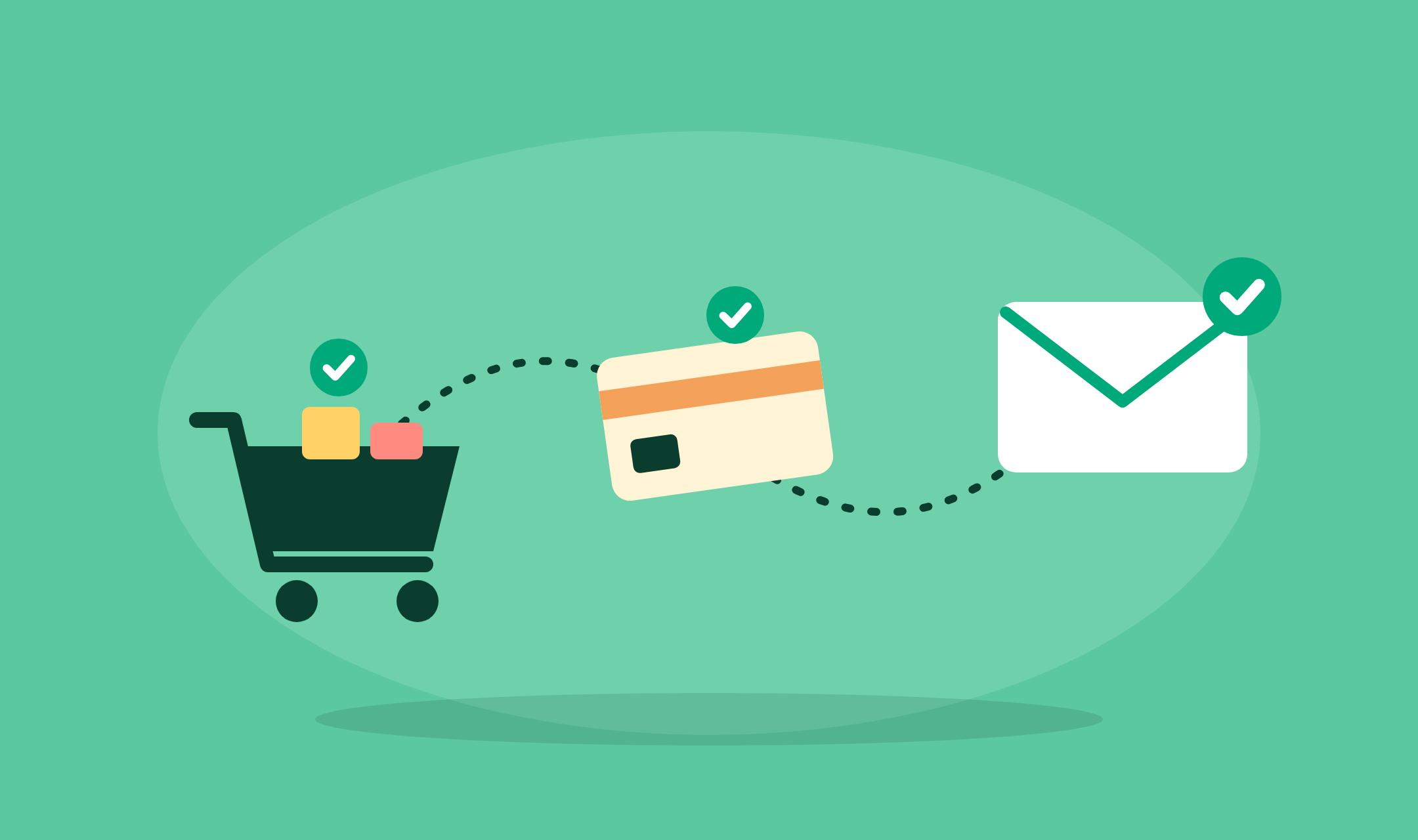
Don’t just test whether the checkout page opens. Complete the journey using an approved payment sandbox and verify the expected result at each stage, right through to the confirmation email. This is exactly what end-to-end testing is designed for.
With Ghost Inspector’s Test Recorder, you can record your complete shopping journey, from cart entry to final payment submission, and turn it into a reusable automated test that monitors checkout health. There’s no scripting needed to get started, and Ghost Inspector’s visual test editor lets you adjust any step afterward.
Payment, shipping and the other services you depend on
Online stores rarely operate on their own. They often depend on payment providers, shipping services, inventory systems, email platforms and other integrations. If one of these services stops working correctly, it can affect the shopping experience. For example:
- A payment provider might fail to load.
- Shipping information might not update correctly.
- An order confirmation email might not be triggered.
- Inventory information might not reflect the latest product availability.
Test the parts of these integrations that customers interact with. It’s also worth checking whether your website displays a useful message when a third-party service is unavailable, so that customers aren’t left wondering whether their order was submitted successfully.
Don’t wait for a customer to tell you that the checkout is broken
Our 14-day free trial gives you and your team full access. Create tests in minutes. No credit card required.
Test the minute the sale switches on (and off)
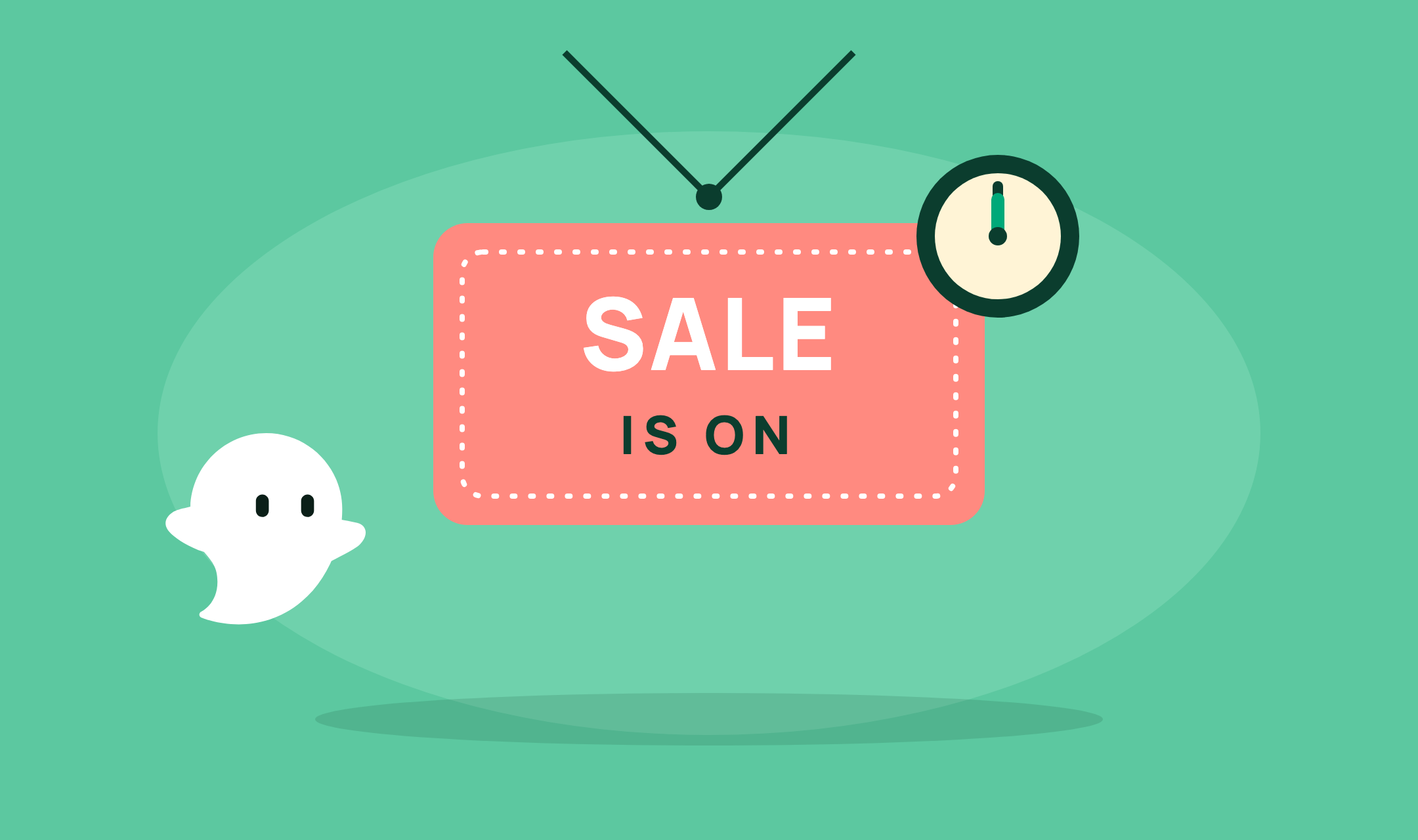
Many Black Friday problems start at the switch-over, which is the moment your sale prices, banners and codes go live. Everything can pass the day before and still break when the sale configuration takes effect, so test that moment on purpose, along with the moment the sale ends.
Before and after the switch
Where your platform allows it, set up the sale ahead of time, with prices, banners and codes scheduled but not yet live, and check that configuration in production before the start time. That way, the switch-over is a confirmation, not a first look.
Right before the switch, confirm the regular prices, banner and code behavior. Right after, confirm that sale prices appear, the banner shows and valid codes apply. Run the same test both times, so you can see exactly what changed.
Time zones and the switch-off
A promotion scheduled in the wrong time zone switches on at the wrong time. Check the start and end times against the time zone your store, your platform and your email tool each use, and confirm the switch happens when you expect.
Test the end of the sale as well. Prices should return to normal, banners should come down and expired codes should be refused.
In Ghost Inspector, you can use Advanced Schedule (available on paid plans) to run a test at the switch-over time. Ghost Inspector tests run on UTC and the system clock can’t be set, so time the run instead of faking the date. Work out your switch-over time in UTC, then schedule runs just before and just after it, and another after the sale ends.
Check the sale on the phones and browsers your shoppers use
Many customers shop using their phones, particularly when they discover promotions through social media, email or search engines. Adobe forecasts that 57.4% of US holiday online spending this season will happen on mobile. A checkout process that looks fine on a laptop might have problems on a smaller screen.
For example, a sale banner could take up too much space, a button might become difficult to access, or form fields could overlap. Before Black Friday, test your website on different screen sizes and pay attention to:
- Product images and descriptions.
- Add-to-cart buttons.
- Shopping cart summaries.
- Discount code fields.
- Delivery information forms.
- Payment and checkout buttons.
Also check whether customers can move between checkout steps without losing the information they’ve already entered.
Not everyone shops in the same browser, either. Some customers use Chrome, others prefer Safari or Firefox, and some use Microsoft Edge, so test important actions in each browser you support, such as:
- Opening product pages.
- Adding products to the cart.
- Applying discount codes.
- Selecting delivery options.
- Completing checkout.
Look for visual differences too. A button might be correctly positioned in one browser but overlap another element in a different browser. A form might also behave differently depending on the browser.
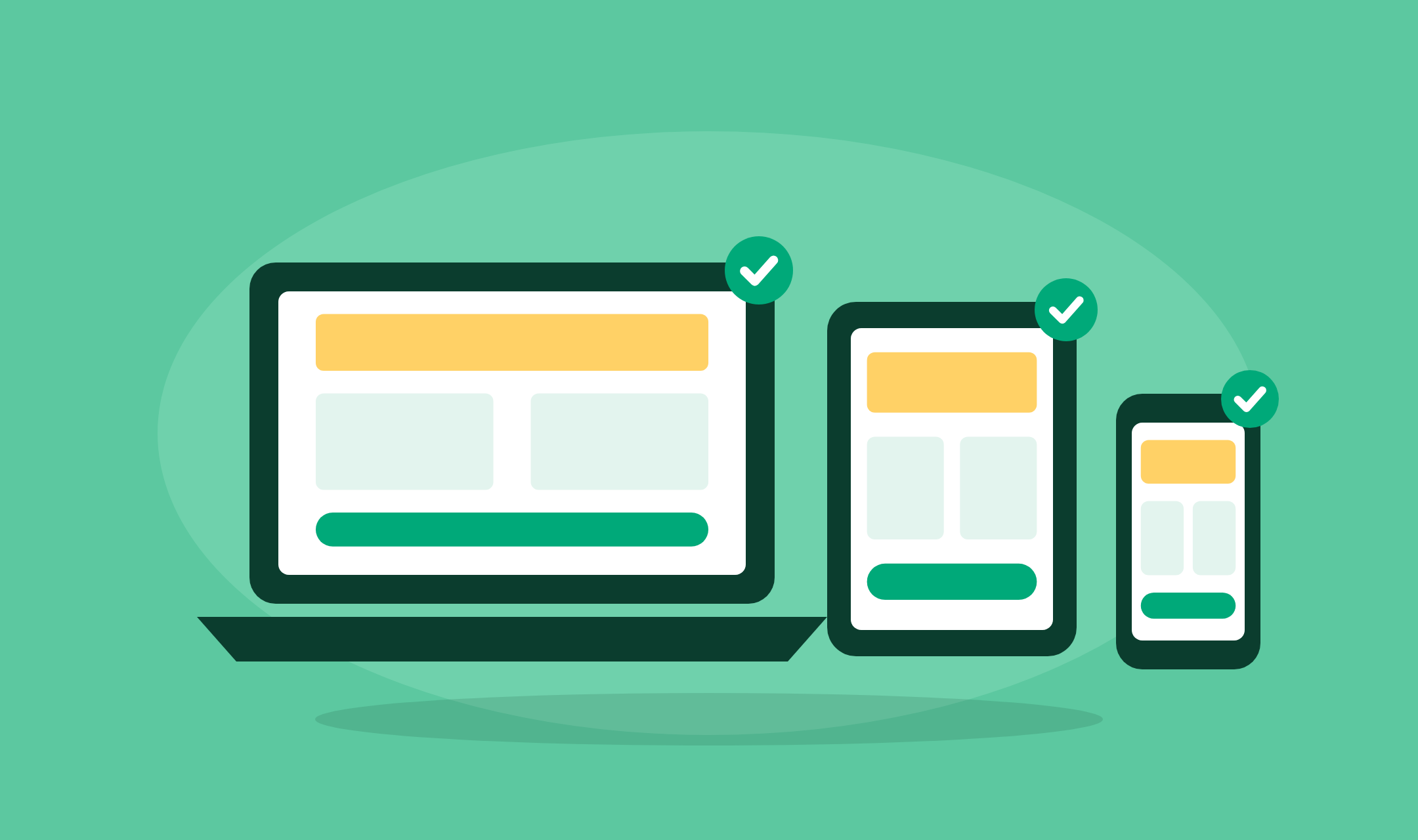
In Ghost Inspector, the Screen Size setting can run several sizes in one test, so you can check your checkout at phone, tablet and desktop widths without building a separate test for each. Screenshot Comparison catches a sale banner that breaks the layout by flagging unexpected visual changes between runs. Ghost Inspector runs tests in Chrome and Firefox, and Screen Size emulates the viewport rather than running on real devices, so check Safari and a real phone by hand before launch.
For more, see our posts on why passing tests can still miss a broken UI and testing your responsive design.
Keep your tests running through Cyber Monday
Run your checkout and discount code tests before the sale, then schedule them to keep running. In Ghost Inspector, you can schedule a test by interval or on specific days and times, from Black Friday right through Cyber Monday, and use the Geolocation setting to run it from your shoppers’ regions so you see the store the way they do. For more on this approach, see our guides to monitoring critical user flows and website monitoring and testing.
Scheduled tests aren’t load tests, though. A load test tells you whether your site can handle Black Friday traffic, and it needs a dedicated load-testing tool, while a scheduled checkout test tells you whether shoppers can still buy right now. It’s worth having both in place before the sale.
What to do during a code freeze
A code freeze is when you lean on monitors, not when you stop testing, because plenty can still change without a deployment: promotions switch on and off, stock levels move and third-party services have bad days.
Keep your checkout, discount code and confirmation email tests running on their schedule throughout the freeze. If you do have to ship an emergency fix, run a quick smoke test of your key journeys straight afterwards.
Last Cyber Monday showed how this plays out. Shopify had a problem that hit merchants’ admin logins and point-of-sale checkouts for much of the day.
Who gets the alert
A failing test only helps if someone sees it. Decide before the sale who gets the alert, where it goes and what they do next. Ghost Inspector can send alerts to email, Slack, Microsoft Teams, PagerDuty and other services, so you can post routine failures to a team channel and route checkout failures out of hours to whoever is on call.
Every run records screenshots and video, so the person on call can see where the test failed and triage faster.
Your Black Friday website testing checklist
Use this table to track what to check and when. “Switch-over” means the moment your sale prices, banners and codes go live.
| Check | Pass if… | When |
|---|---|---|
| Discount codes and stacking | Valid codes give the right discount, invalid and expired codes are refused, and stacking follows your rules. | Before; at switch-over |
| Prices, cart totals and stock | Sale prices, subtotals and final totals are correct, and unavailable products are clearly flagged. | Before; at switch-over |
| Checkout to confirmation email | A test order in the payment sandbox completes and the correct confirmation email arrives. | Before; during the sale |
| Shipping and payment options | Delivery options and costs update the total, and the expected payment methods appear. | Before |
| Third-party services | Payment, shipping, inventory and email integrations respond, and a clear message shows if one is down. | Before; during the sale |
| Mobile shopping | Product pages, cart and checkout work at phone and tablet sizes without losing entered details. | Before; at switch-over |
| Browsers | Key journeys pass in the browsers you support. | Before |
| Scheduled monitors | Checkout, discount code and key journey tests run on a schedule, with alerts that reach the right people. | At switch-over; during the sale |
Frequently asked questions (FAQ)
How far ahead of Black Friday should I test?
Aim to run your full set of tests a couple of weeks before the sale, so there’s time to fix what you find.
Should I test on production or staging?
Both, for different jobs: use staging for the deeper checks, such as discount edge cases and test orders, and use production for the switch-over check and the monitors that run during the sale. On production, use a test product or your payment provider’s test mode where your platform allows it, so you aren’t creating real orders.
How often should checkout monitors run during the sale?
Match the interval to what an outage would cost you: for checkout, we’d run it every 15 minutes or so, and less critical pages can run less often.
Keep an eye on checkout through Cyber Monday
Our 14-day free trial gives you and your team full access. Create tests in minutes. No credit card required.