


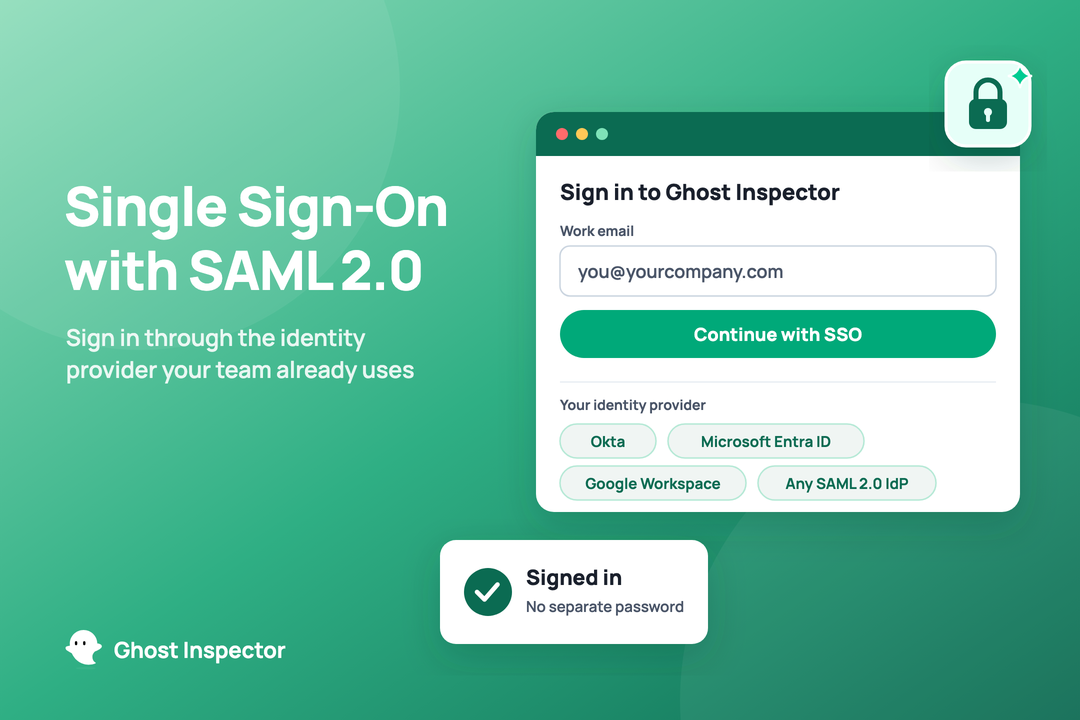
Ghost Inspector now supports single sign-on (SSO) with SAML 2.0. It's included with Enterprise plans and available as a paid add-on on any other plan. Your team signs in through the identity provider you already use, whether that's Okta, Microsoft Entra ID, Google Workspace or another SAML 2.0 provider, so there's no separate Ghost Inspector password to create, remember or reset.
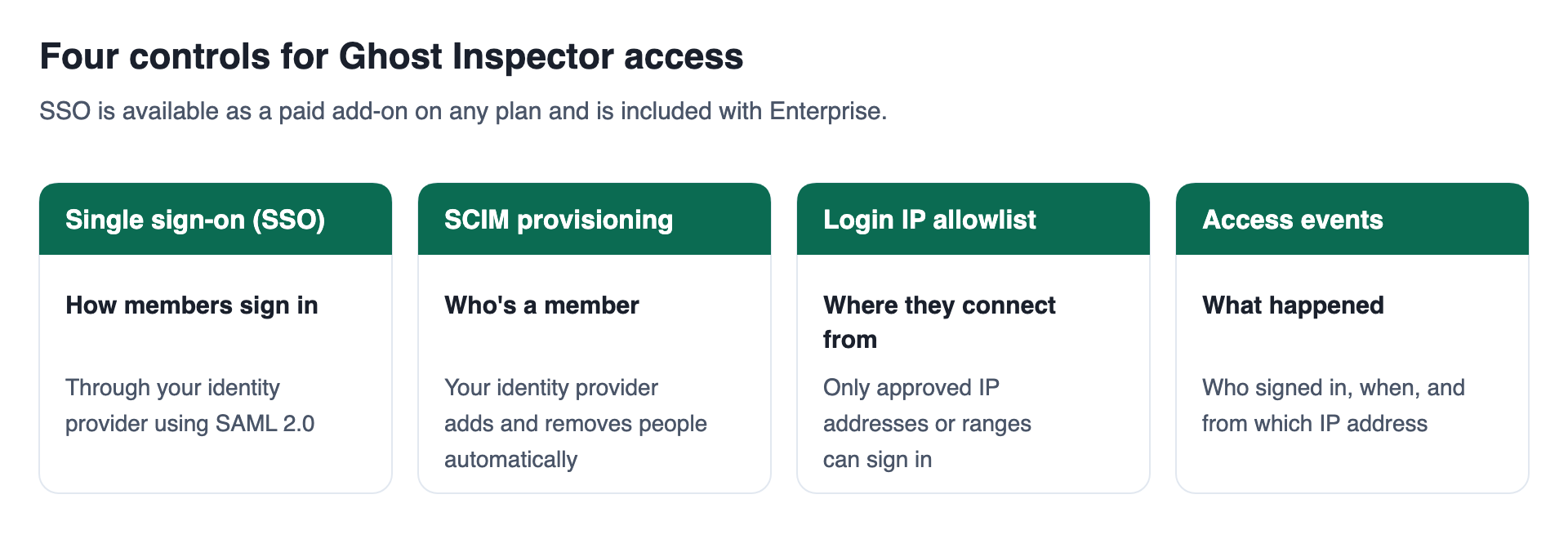
SSO is available alongside SCIM provisioning, a login IP allowlist and access events. Together they let you manage who can get into Ghost Inspector, how they sign in and where from, using the identity and security tools you already have.
We'll walk through what each of those controls does, what signing in looks like for your team, and what happens to someone's access (and their personal API key) when they leave. Then we'll cover the details to send your IT team to get it set up, and answer common questions about turning SSO on.
Table of Contents
- What's new: sign in to Ghost Inspector with SSO
- How signing in works for your team
- Keeping membership in sync with SCIM
- Checking who got in: IP allowlist and access events
- Setting up SAML SSO: what to send your IT team
- Ready to get started?
- FAQ
What's new: sign in to Ghost Inspector with SSO
SSO comes with Enterprise plans, and you can add it to any other plan as a paid add-on. Either way, your account rep or our support team turns SSO on for your organization. After that, your members sign in with the same company login they use everywhere else.
SAML 2.0 is the open standard, published by OASIS, that most identity providers use to vouch for who someone is. Your identity provider (often shortened to IdP) is the system your company uses to manage logins, such as Okta. It checks the person's credentials, then tells Ghost Inspector who they are, so Ghost Inspector never handles their password, and any multi-factor authentication you require there still applies. NIST's digital identity guidelines sum up the benefit: people can use many services "without the need to hold or maintain separate authenticators" for each one.
It works with any identity provider that supports SAML 2.0. Our SSO docs specifically name Okta, Microsoft Entra ID (formerly Azure Active Directory), Google Workspace, OneLogin, PingIdentity and JumpCloud.
The four controls are designed to work as a set, and each one answers a different question.
Testing tools benefit from this more than most. Okta's Businesses at Work report puts the average company at 101 apps, and each one with its own password is another account someone has to create and then remember to remove. Testing tools usually sit a step away from the core stack, which is exactly why they get missed. We'd rather Ghost Inspector be one of the apps that's handled for you.
How signing in works for your team
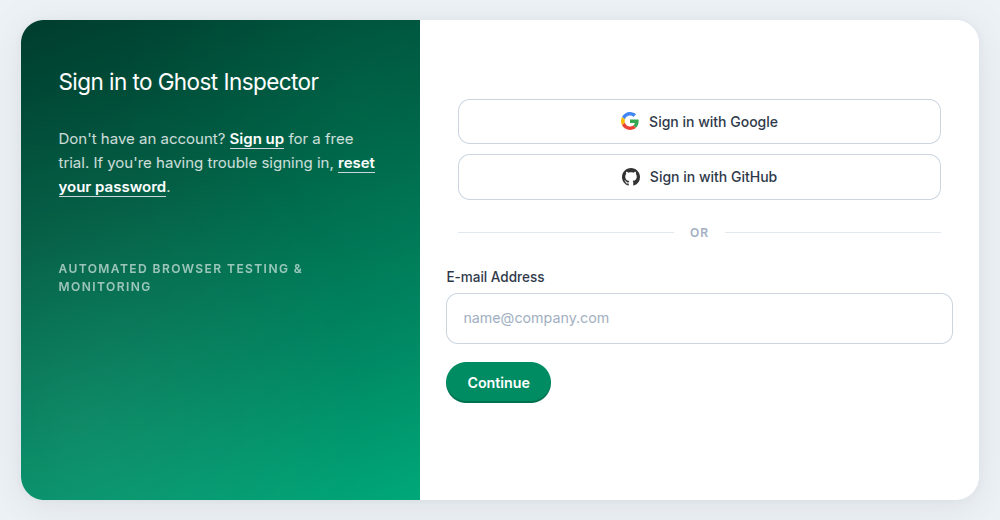
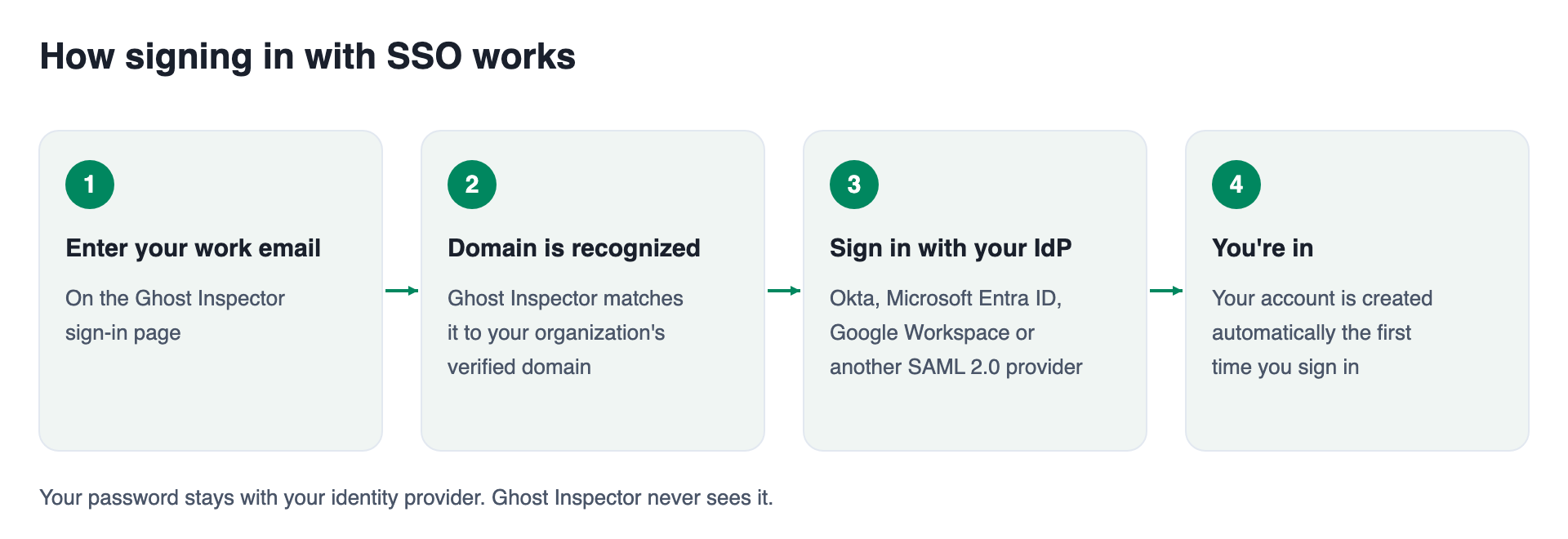
Your members sign in by entering their work email on the Ghost Inspector sign-in page. If that email's domain belongs to an organization with SSO turned on, Ghost Inspector sends them to your identity provider to sign in, then brings them straight back.
A few details make the rollout easier:
- More than one domain. You can verify several email domains for a single organization, which helps if your company runs more than one brand or picked up domains through an acquisition.
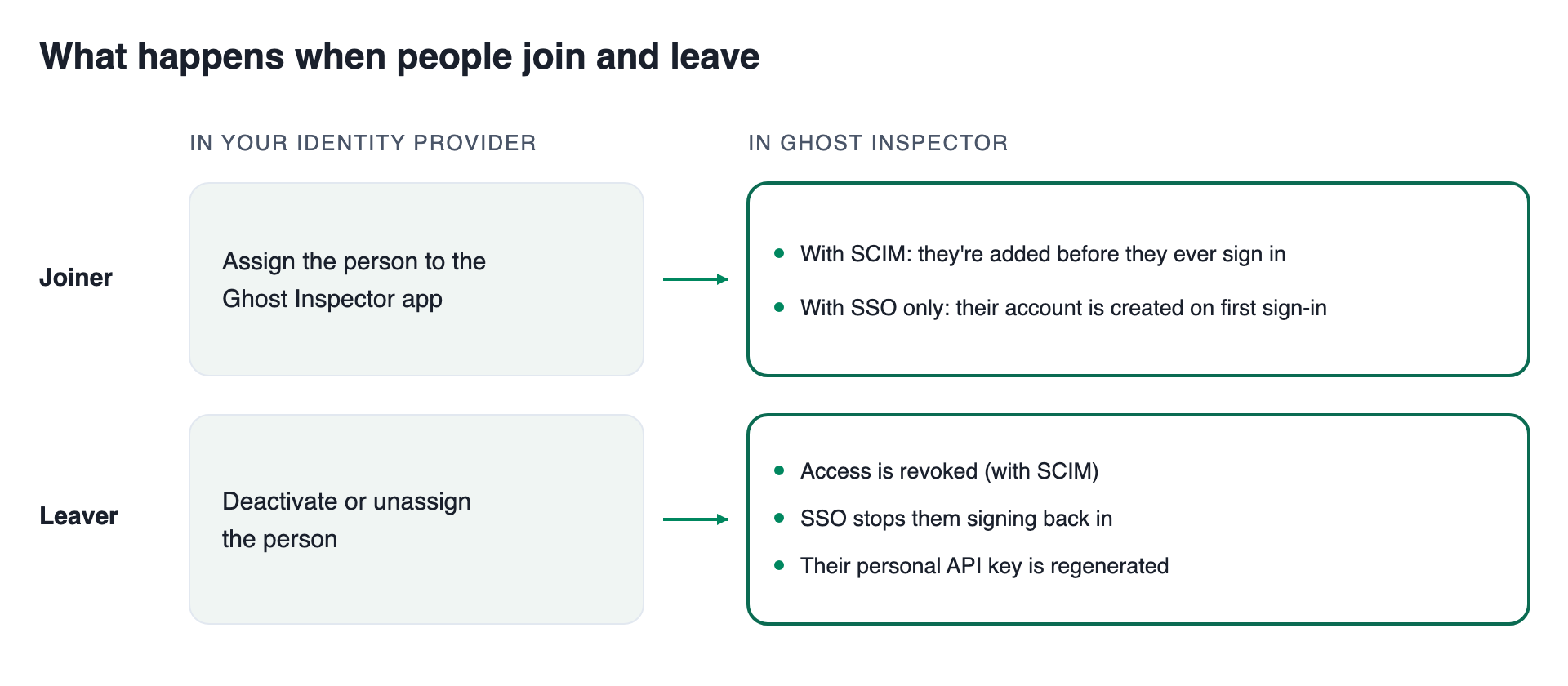
- No invitations to send. Ghost Inspector uses just-in-time provisioning, which means an account is created automatically the first time someone signs in through SSO. Assign a person to Ghost Inspector in your identity provider and they're ready to go.
- No passwords to manage. Once SSO is on, the email and password fields in each member's Ghost Inspector account settings are hidden, because your identity provider manages them now.
Keeping membership in sync with SCIM
SSO decides how people sign in, and SCIM decides who's a member in the first place. As our SCIM docs note: "SSO governs how members log in; SCIM governs who exists in your organization." SCIM is the standard that lets your identity provider add, update and remove people in other apps automatically.
With SCIM connected, you can add people in advance, so they're already in your Ghost Inspector organization before they ever sign in. Names and email addresses stay in sync with your identity provider, and you can assign individual users or whole groups. SCIM is set up together with SSO, and the docs walk through the setup for Okta and Microsoft Entra ID.
If you're wondering whether you need both, SSO on its own already covers new joiners, because accounts are created on first sign-in. The difference shows up when people leave.
What happens when someone leaves
When you deactivate or unassign someone in your identity provider, SCIM revokes their Ghost Inspector access and SSO stops them from signing back in. If you need to act right away, organization admins can also remove a member from the Members page in Ghost Inspector.
The part we'd flag for anyone running Ghost Inspector from a build or deployment pipeline is the API key. For security, Ghost Inspector regenerates a member's personal API key when their access changes. That means an old key sitting in a pipeline config stops working rather than silently carrying on. It's worth checking which keys your CI jobs use before someone's access changes, so a build doesn't fail on their last day.
Manage Ghost Inspector access from your identity provider
Add SSO to any Ghost Inspector plan, or get it alongside SCIM provisioning, a login IP allowlist and access events on Enterprise. Talk to us and see how they'd fit your team's setup.
Checking who got in: IP allowlist and access events
The other two controls cover where your team can sign in from and give you a record of who actually did.
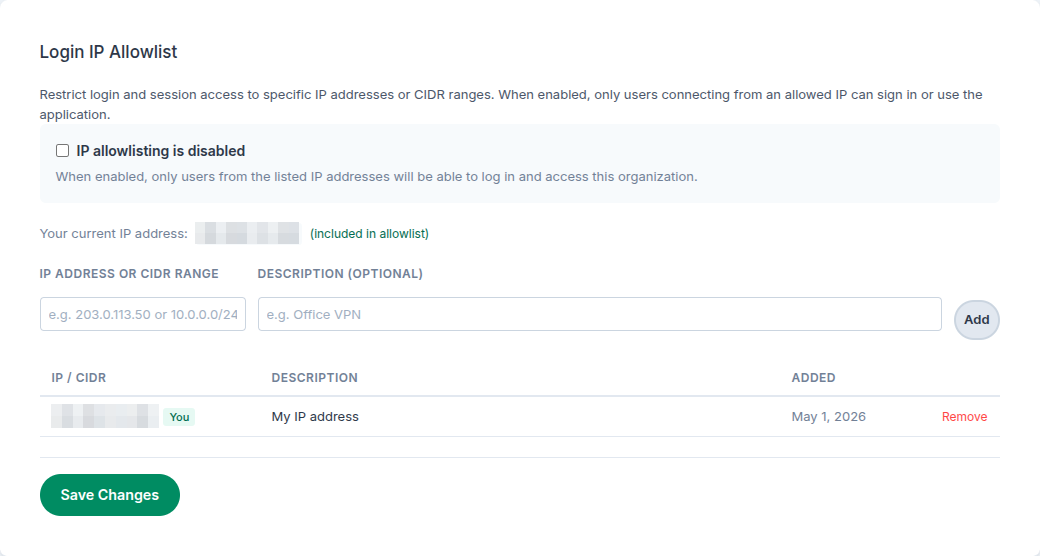
The login IP allowlist limits sign-in to approved IP addresses or ranges, which you can enter as single addresses or in CIDR notation. It works on top of authentication, so even someone with valid credentials can't get in from a network that isn't on the list. One practical tip from the docs is to make sure your own current IP is on the list before you switch it on, and the settings page shows it for you.
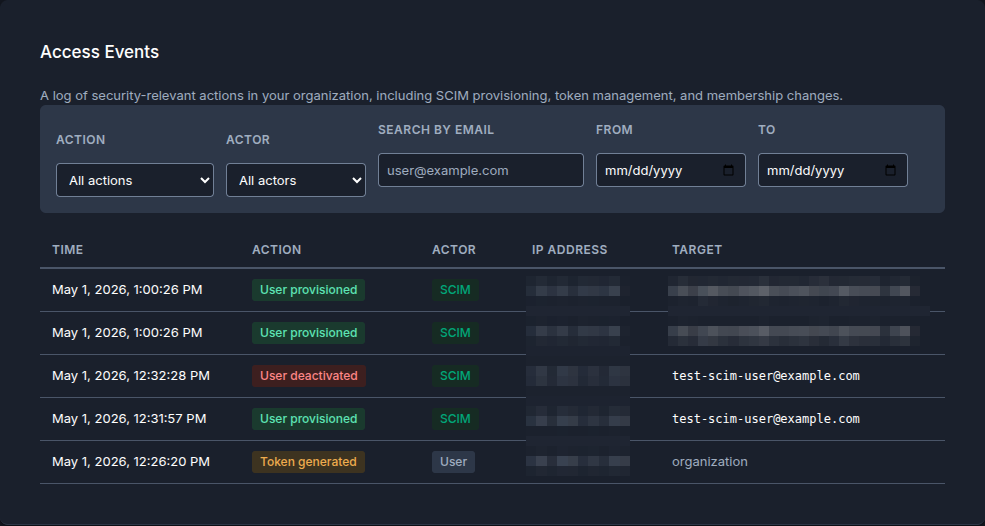
Access events is Ghost Inspector's audit log. It records who signed in, when, and from which IP address, along with SCIM provisioning, token management and membership changes. Organization admins can filter it by action, member, email address and date range. The docs list the typical uses as security reviews, incident investigations, checking that offboarding worked, and compliance audits.
Maintaining these detailed logs is crucial, given that authentication activity is often far more turbulent than teams anticipate. Verizon's research on credential stuffing (attackers trying leaked username and password pairs at scale) looked at SSO provider logs and found that a median of 19% of daily authentication attempts were credential stuffing, rising to 25% at enterprises. Verizon's Data Breach Investigations Report now finds that 31% of breaches start with software vulnerabilities, pushing stolen passwords out of first place. They're still one of the most common ways in, though, so every standalone password you remove is one fewer thing to steal.
Setting up SAML SSO: what to send your IT team
Setup is a short exchange of details between Ghost Inspector and whoever manages your identity provider. Start by asking your Ghost Inspector account rep or our support team to enable SSO for your organization, or to add it to your plan if you're not on Enterprise. Then you'll swap the following:
| Ghost Inspector gives you | You give Ghost Inspector |
|---|---|
| Sign-in (ACS) URL | Your identity provider's sign-in (SSO/SAML) URL |
| Entity ID / Audience URI | Your identity provider's X.509 signing certificate |
| SCIM base URL and bearer token (if you're using SCIM) | The attributes you'll send: email at minimum, mapped to NameID, with name recommended |
| The email domains you want to verify |
You can forward the table to your IT team along with our SSO docs, which walk through Okta, Microsoft Entra ID and Google Workspace step by step, and our SCIM docs. If your security team is reviewing Ghost Inspector more broadly, our security docs and enterprise security overview cover the rest, and our roundup of BrowserStack alternatives walks through the security features reviewers usually compare. If you ever need to turn SSO off, that goes through your account rep as well.
Ready to get started?
That's one less password for your team to forget, and one less account to chase down when someone leaves. With SSO, your members sign in the way they already do everywhere else. Removing someone in your identity provider takes care of Ghost Inspector too, personal API key included.
Single sign-on and the other enterprise access controls are just part of what we're rolling out. We've got several more updates and features on the way to make testing and monitoring even smoother, so stay tuned for more announcements here on the blog and in our changelog.
Ready to switch on SSO today? Let your account rep or our support team know, and hand IT the setup table above. We'll take it from there.
FAQ
Does Ghost Inspector support SSO?
Yes. Ghost Inspector supports single sign-on with SAML 2.0. It's included with Enterprise plans and available as a paid add-on on any other plan, and your account rep or our support team turns it on for your organization.
Do I need an Enterprise plan to use SSO?
No. SSO is available as a paid add-on for any plan size, and it's included with Enterprise. Check our pricing page or contact our team to add SSO to your plan.
Which identity providers work with Ghost Inspector?
Any identity provider that supports SAML 2.0, including Okta, Microsoft Entra ID, Google Workspace, OneLogin, PingIdentity and JumpCloud.
Do I need SCIM if I already have SSO?
Not strictly. With SSO alone, accounts are created the first time someone signs in, and people you unassign can't sign back in. SCIM adds people in advance, keeps names and emails in sync, and revokes access automatically when you deactivate someone.
What happens to a member's API key when their access changes?
Ghost Inspector regenerates it, so the old key stops working. Check which keys your CI jobs rely on before someone's access changes.
Can one organization use more than one email domain?
Yes. You can verify several email domains for a single organization, and members from any of them are sent to your identity provider to sign in.
How do I turn SSO off?
Get in touch with your Ghost Inspector account rep, who can turn it off for your organization. When it's off, members go back to signing in with an email and password, so they'll need to set or reset one.
Switch on SSO for your organization
SSO is included with Enterprise and available as a paid add-on on any plan. Ask your account rep or our support team to turn it on, then follow the setup docs to connect Okta, Microsoft Entra ID, Google Workspace or any SAML 2.0 identity provider.